What is CSS?
While HTML is used to define the content of a webpage CSS is used to determine how it’s styled (how it looks). The default styles of a web page are really basic, and we’ll have to add some CSS to spice it up a bit.
Creating a Stylesheet
Stylesheets are files that contain CSS and are included inside HTML files. Let’s begin by creating a file called styles.css in the same folder as the tutorial.html file:
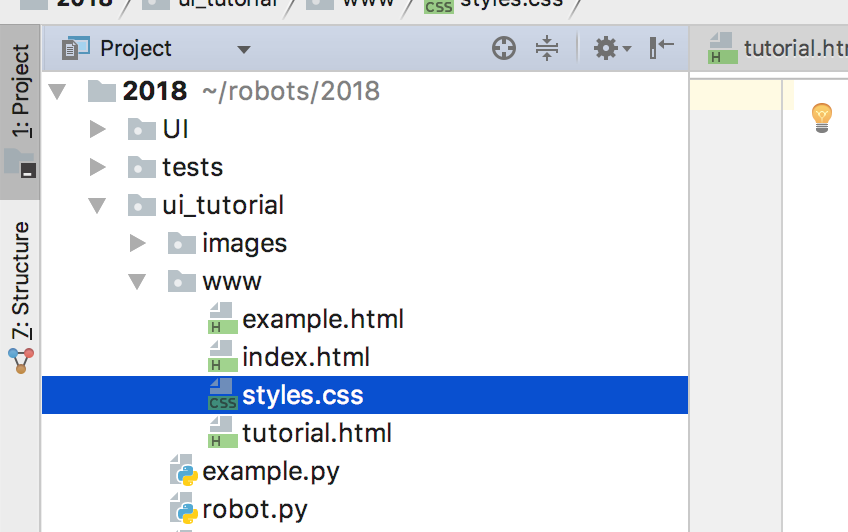
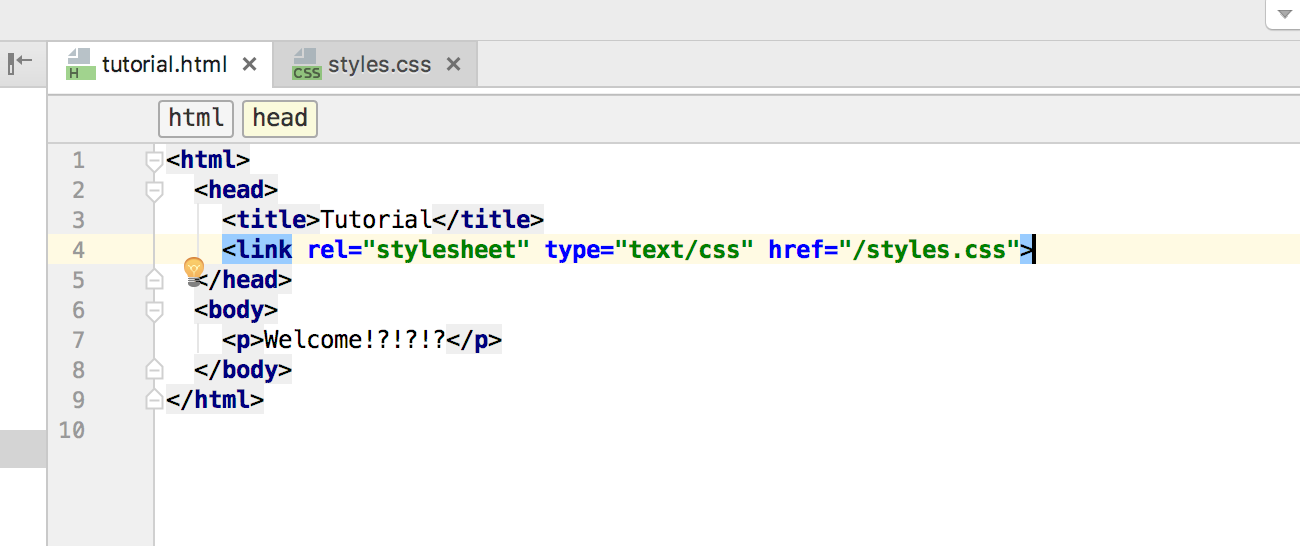
To include the file in your page add this line to head element on your page:
<link rel="stylesheet" type="text/css" href="/styles.css">
To style a web page first we need some HTML:
<p>I am a paragraph!</p>
<p>I am another paragraph!</p>
<button>I am a button!</button>
<div>
  <button>I am a button inside a div!</button>
  <p>I am a paragraph inside a div!</p>
  <p>I am another paragraph inside a div!</p>
  <button>I am another button inside a div!</button>
</div>
<button>I am another button!</button>
Copy and paste this code inside the body tag of the tutorial.html page:

Refresh the web page and you should see this:

Definitely not what we want. Let’s jazz it up a bit.
What’s in a stylesheet?
When styling elements on a page there are two things you need to know: selectors and properties. Selectors are used to target specific elements on a page. A selector’s properties are the actual styles being applied. For example, if we wanted to make all buttons purple we would select only elements of type button, and we would set its background property to purple.
Selectors
Here are a few common selectors:
tag selector
button {
  *properties go here...*
}
Tag selectors apply to all elements with that tag. The above selector will apply its properties to all buttons in the web page.
class selector
.big-button {
  *properties that make button large go here...*
}
.small-button {
  *properties that make button small go here...*
}
<button class="big-button">I'M A REAL BIG BUTTON!</button>
<button class="small-button">I'M A REAL SMALL BUTTON!</button>
If you had two buttons and you wanted to style them differently, you would have trouble doing this with a tag selector. The solution is to add the class attribute to each element and give them different values. You can then select and style each one individually by taking the class and prepending it with a period.
Combining selectors
<p class="big">I am a big paragraph</p>
<p>I am another paragraph!</p
<button class="big">I am a big button</button>
<buttonI am a normal sized button</button>
What if we wanted to select only buttons with the class big? We could create a class seletor that targets elements with the class big. This doesn’t work however, since it targets one of the p tags as well.
We could use a tag selector and select all buttons, but there is another button that doesn’t hae the big class so that doesn’t work either.
The solution is to combine These selectors insto one:
button.big {
  *properties go here*
}
In the above we combined the selectors without separating them with a space. Selectors like this will only target elements that meet all the selector’s criteria.
In the HTML we added to the tutorial.html file we had a div that contained two buttons and two paragraphs. What if we wanted to style only these buttons, and not the buttons outside div. We can do this with this selector:
div button {
  *properties go here*
}
This selector selects all button elements that are children of div elements. Selectors written with a space are used to select child elements.
Selector Properties
Selector properties have a name and a value. To add a property you must write it in the following format: property-name: value;
Here are a few common properties:
color
button {
  color: blue;
}
This changes the font color of the button’s text to blue.
background
button {
  background: green;
}
This adds a green background to all buttons.
font-size
button {
  font-size: 24px;
}
This changes the font-size for all buttons to 24px.
width and height
button {
  width: 200px;
  height: 100px;
}
This makes buttons 240px wide and 100px tall.